
Screen Mirroring - TV Miracast
Sooltr LLCTools
4.79.54K Reviews
- Version
- 4.0.0.297
- Installs
- 10.00M
- Age Rating
- Everyone
Screenshots
Our Review of Screen Mirroring - TV Miracast
 Analysis by Appyee
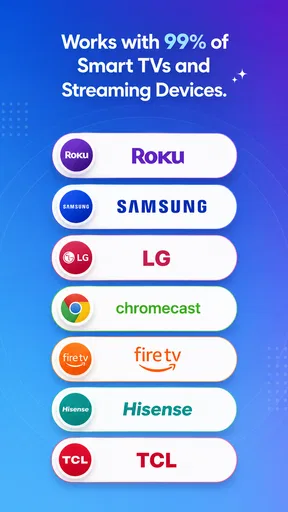
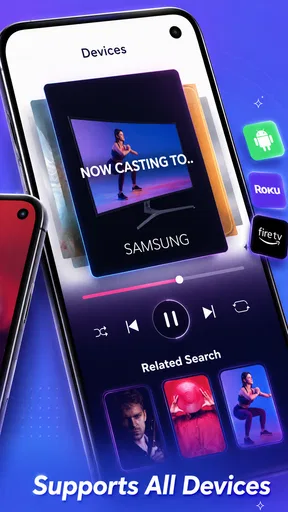
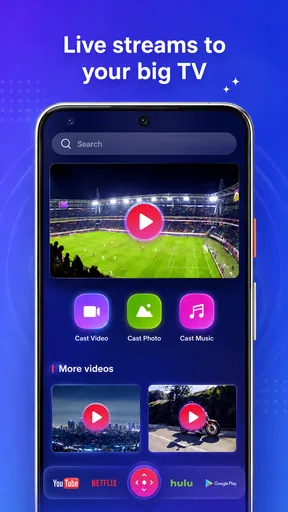
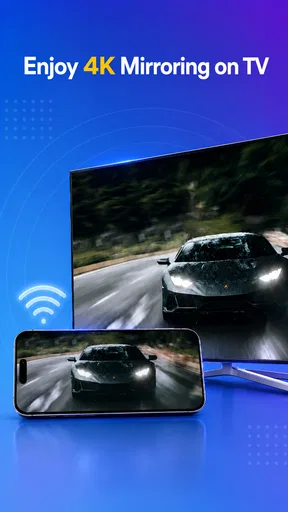
I find screen mirroring apps most useful when they solve a very specific problem: getting something from a phone onto a television without making everyone gather around a small display. Screen Mirroring - TV Miracast is built for that moment. It is a free Tools app from Sooltr LLC that focuses on sending your phone’s screen, live streams, and movies to compatible Roku, Chromecast, Fire TV, and other television devices.
After spending time with it, my impression is that the main challenge is not usually pressing the cast button. The real work is making sure the phone, television, and receiving device are ready to communicate. When that preparation is right, the app can be a convenient bridge between mobile content and a larger screen. When it is wrong, the experience can feel confusing even though the app itself may be working normally.
The app has reached over 10 million installs and holds a 4.7 average from around 563 thousand ratings, which suggests that the basic idea works for a large audience. I would still judge it by your particular television setup rather than by popularity alone. Wireless display behavior depends heavily on the phone, the receiver, the network, and the type of content you are trying to show.
Where people usually get stuck
The first sticking point is device discovery. A television may be switched on and still not appear as an available destination. In my experience, that does not automatically mean the mirroring app has failed. A phone can be connected to one wireless network while the television or streaming stick is using another, even when both networks have similar names. Guest networks and network extenders can also separate devices from one another.
I would begin with the simplest check: confirm that the phone and the receiving device are connected to the same local network. If the television uses a separate streaming accessory, check the accessory rather than assuming the television’s own connection is the one being used. Then close and reopen the app after changing the network. Device lists do not always refresh instantly, and repeatedly tapping a missing device rarely helps.
Another common source of confusion is the difference between mirroring and casting. Mirroring shows the phone’s display, including navigation, notifications, and changes between apps. Casting, where supported by the receiving device or content source, may hand playback over to the television more directly. These approaches do not behave identically. A film can look fine when sent through a supported playback route but behave differently when the entire phone screen is mirrored.
This distinction matters for privacy. If you mirror your phone during a family viewing session, incoming messages or other on-screen alerts may become visible. I make a habit of enabling a quiet mode and closing unrelated apps before starting. That small preparation is more useful than trying to hide notifications after the television has already displayed them.
Users also get stuck when they expect every television to support every type of wireless display connection. Screen Mirroring - TV Miracast works with a range of popular receiving platforms, but compatibility is not universal. The presence of a smart television does not guarantee that it will accept the same connection method as a Roku, Chromecast, or Fire TV device. The receiver’s technology matters as much as the app’s name.
Video quality creates another false alarm. A phone may mirror menus smoothly but show a delayed or uneven video image. That can happen because moving images demand more from the wireless connection than static pages. It can also happen because the source app handles protected video differently from ordinary screen content. I would not use a single difficult streaming service as the only test of whether the mirroring setup is usable.
What to check before tapping connect
My preferred setup routine is deliberately boring. I wake the television, select the correct input, and make sure the receiving device is ready before opening the mirroring app. If a streaming stick is involved, I check that the television is displaying that stick’s screen rather than a different HDMI input. This avoids confusing a connection problem with an input-selection problem.
Next, I check the phone’s wireless connection and temporarily avoid switching between networks. If the phone has recently moved from home Wi-Fi to mobile data, or from one router to another, I reconnect before trying again. A stable local connection is more important here than a fast internet connection because the first communication is between devices in the same environment.
I also keep the phone reasonably close to the router or receiver during the first pairing attempt. Once the connection is established, I can test whether the setup remains reliable from the sofa or another room. Starting at a distance adds too many variables. If the first connection fails, I want to know whether the issue is discovery rather than signal strength.
Before a presentation or movie night, I test the exact material I plan to show. A photo gallery, a browser page, a short video, and a live stream can place different demands on the connection. This is one of the more useful habits with a mirroring tool: test the real workflow, not just the device name. A successful connection to a settings screen proves very little about long-form video.
Screen orientation is worth considering too. A phone held vertically may produce a narrow image on a wide television, while rotating it can make better use of the display. I prefer to rotate before starting playback, because changing orientation during a session can introduce a pause or force the connection to adjust. This is a small detail, but it makes the final result look more deliberate.
Battery level is another practical concern. Wireless display use can keep the screen active and place extra demand on the phone. For a short photo session this is rarely important, but for a long film or live event I would start with a comfortable charge and keep the phone where it can be reached. I would avoid putting it under a cushion or in a hot location while it is working as the source.
A reliable recovery routine when the session breaks
When the television stops showing the phone, I do not immediately uninstall anything. I first look at the app and the receiver separately. Is the phone still showing an active connection? Is the television still on the expected input? Has the receiver returned to its home screen? These observations tell me whether the break happened during discovery, transmission, or display.
If the image freezes, I stop the current session and reconnect rather than repeatedly starting new attempts on top of it. I then test a simple screen such as the phone’s home screen. If that works, I try a photo or a short local clip before returning to the original stream. This gradual approach identifies whether the wireless link is unstable or whether the original content is the difficult part.
Restarting the receiving device can be more effective than restarting the phone alone. Streaming hardware can remain powered for long periods and occasionally needs a clean start. I also close other high-demand activities on the phone, especially anything that is actively uploading, downloading, or using the camera. The goal is to reduce competing activity while troubleshooting rather than changing several settings at once.
When the device list is empty, I repeat the network check and then reopen the app. If the receiver still does not appear, I verify its input and readiness. I would not keep toggling random phone settings, because that makes it harder to remember what changed. A short, repeatable sequence—check network, check input, reopen the app, restart the receiver—usually gives a clearer result.
There is also a useful difference between a delayed picture and a disconnected picture. A delay means the connection is still carrying information, even if the timing is poor. A disconnected picture means the session has ended or the receiver is no longer displaying it. For a presentation, a slight delay may be tolerable if I only need to show slides or photos. For interactive gaming or precise demonstrations, it can be a deal-breaker.
That trade-off is important because screen mirroring is not the same as a wired connection. I would use this app for showing a photo album, walking someone through a mobile app, displaying a browser page, or sharing a casual video. I would be more cautious about using it for fast games, live performance monitoring, or anything where a fraction of a second affects the result.
When the app is not the real cause
Some playback problems come from the content source rather than the mirroring tool. A service may restrict how its video can be displayed, or its own player may behave differently when the phone screen is being mirrored. If menus and ordinary phone content appear correctly but one particular video remains blank, stops, or shows an unusual result, I treat that as a compatibility question rather than proof that the entire app is broken.
In that situation, the receiving platform’s native playback option may be the better choice. If a service offers its own cast control or a television app, that route can be more suitable for long viewing because it may send the stream directly instead of reproducing the phone’s complete display. Screen Mirroring - TV Miracast is more valuable when I need to show something that does not have a convenient television app or when I want the television to follow what I am doing on the phone.
The phone itself can also be responsible for poor results. Aggressive battery management may pause background activity, while an overloaded device may struggle to keep the screen responsive. I check whether the phone is already hot or performing other demanding tasks before blaming the receiver. A clean test with a simple image or page helps separate phone performance from network behavior.
The home network is another overlooked factor. A crowded wireless environment can create pauses even when ordinary web browsing feels normal. Mirroring is continuous: the phone must keep sending changes as the screen moves. A connection that is perfectly adequate for checking email may still produce stutter during a full-screen video. Moving closer to the router, reducing competing traffic, or using a less congested setup can reveal whether the problem is environmental.
I would also remember that the television’s operating system and the receiver’s firmware affect the final experience. The app cannot make an incompatible display standard compatible by itself. If a particular television never appears while another supported receiver connects normally on the same phone and network, that comparison is valuable. It points toward the television or receiver rather than the phone application.
What the free app offers, and where the trade-offs appear
The free price makes this an easy tool to try before buying extra hardware or changing your viewing habits. It is rated for Everyone, and the current version is 4.0.0.297 with a minimum operating system requirement of Android 6.0. That broad device reach is helpful for households with an older spare phone, although age alone does not guarantee smooth mirroring. Hardware capability and receiver compatibility still matter.
There are in-app purchases ranging from around four dollars to around fifty dollars per item. I would pay attention to what is available in the version you use and whether the free experience already covers your needs. For occasional photo sharing, a free route may be enough. If your goal is frequent, uninterrupted viewing, compare the cost of any optional upgrades with the native casting tools already included in your television or streaming device.
Compared with built-in phone casting, this app can be useful when the system’s own controls are difficult to find or when you want one place to try different receiving platforms. The advantage is convenience during discovery. The disadvantage is that another app sits between the phone and the television, so there is another layer to open, maintain, and troubleshoot.
Compared with a cable, wireless mirroring is less tidy and more flexible. A cable usually wins for predictable timing and independence from local wireless discovery, while this app wins when I want to move around without physically connecting the phone. Compared with a receiver’s native app, mirroring is broader for displaying phone content but may be less efficient for supported movies and live streams.
One non-obvious strength is its usefulness as a temporary solution. If I am visiting a relative and need to show a map, a set of photos, or a mobile form on a larger screen, I may not want to install a dedicated television app or carry a cable for every possible device. A mirroring tool can be practical in that situation, provided the receiver is compatible and the network allows local device communication.
One equally important weakness is that the phone remains part of the viewing chain. Someone may accidentally leave the app, lock the screen, answer a call, or walk out of reliable wireless range. For a relaxed household session, that is manageable. For a formal presentation or a long unattended playback session, a direct television or receiver app is usually the safer choice.
Who should use it in everyday life
A realistic use case is a family gathering where one person has travel photos on a phone and wants everyone to see them. I would connect before people sit down, silence notifications, rotate the phone for landscape images, and keep the display awake. Then I would move through the album slowly, giving the connection time to follow rather than rapidly swiping through dozens of images.
It also suits someone who needs to demonstrate a mobile workflow. For example, I could show a relative how to adjust a setting, follow a recipe from a larger screen, or guide a small group through an app. The value is not only the bigger image; it is that the television follows my actions as I perform them. That makes the app more useful than a simple photo viewer when the content is interactive.
I would recommend it to people who already own a compatible Roku, Chromecast, Fire TV, or similar receiver and want to experiment without immediately committing to another subscription or accessory. It is also a reasonable option for casual live streams and movies when the source behaves well with mirroring. The free entry point lowers the risk of testing it in your own home.
I would skip it if you need guaranteed low latency, professional presentation reliability, or a completely hands-off movie setup. I would also look elsewhere if your television does not support a compatible receiving method and you are unwilling to troubleshoot network discovery. In those cases, a wired connection or the receiver’s native software is more likely to match your expectations.
For privacy-sensitive situations, I would be selective. Mirroring the entire phone screen is convenient, but it can expose more than the intended content. If I only want to watch one supported service, direct playback on the television is preferable. If I need to show a document, website, or app that has no direct television equivalent, the broader screen-sharing approach becomes more worthwhile.
My practical verdict after using it
Screen Mirroring - TV Miracast is best understood as a flexible wireless display helper, not a guarantee that every phone and television will connect instantly. Its strongest use is bringing ordinary phone activity to a larger screen when built-in casting is unavailable, inconvenient, or too limited. Its weakest use is demanding, latency-sensitive playback where a cable or native television app would be more dependable.
I like that it is free to try, works across several familiar receiver types, and addresses a clear everyday need. The large install base and strong average rating make it a credible option, but they do not remove the need for sensible setup checks. The app can only work as well as the network and receiving hardware allow.
My recommendation is to install it when you want a practical way to share photos, pages, demonstrations, live content, or compatible movies from an Android phone. Before an important session, test the exact receiver and content, silence notifications, and keep a backup plan for anything that truly matters. If you follow those steps, the app can turn a frustrating small-screen task into a simple living-room workflow.
For occasional home use, I think it earns a place among the tools worth trying. For serious viewing or professional work, I would compare it directly with native casting and wired alternatives before relying on it. That balanced expectation is the key: this app is helpful when flexibility matters more than perfect timing, and less convincing when reliability must come first every time.
Verdict
Strengths of Screen Mirroring - TV Miracast
- Simple setup for compatible TVs and streaming devices.
- Supports wireless casting without extra cables or adapters.
- Useful for sharing photos, videos, and presentations on a larger screen.
- Mirroring can make mobile gaming more enjoyable on supported displays.
- Clean interface makes core casting tools easy to find.
Limitations of Screen Mirroring - TV Miracast
- Performance depends heavily on Wi‑Fi strength and network stability.
- Some devices may require additional permissions to detect nearby screens.
- Audio or video delays can occur during high-resolution mirroring.
- Compatibility varies between phone models, TVs, and Miracast receivers.
- Ads or premium features may interrupt access to certain tools.
Similar Picks in This Category
View All
Google LLC4.0

Gboard - the Google Keyboard
Google LLC4.5

Google Play services
Google LLC4.3

Google Play Store
Google LLC4.9

Files by Google
Google LLC4.5

SHAREit: Transfer, Share Files
Smart Media4U Technology Pte.Ltd.4.3
Frequently Asked Questions
What is Screen Mirroring - TV Miracast and what can it do?
Screen Mirroring - TV Miracast is designed to display your Android phone or tablet screen on a compatible television or streaming device. After connecting both devices to the same Wi-Fi network, you can share photos, videos, presentations, websites, and some apps on a larger screen. It is particularly useful for media sharing, demonstrations, and casual viewing, although performance depends on your device and TV compatibility.
How do I connect my phone to a TV using Screen Mirroring - TV Miracast?
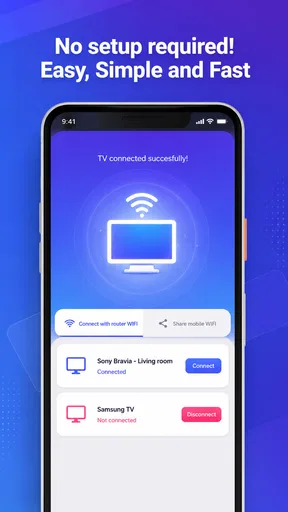
First, make sure your phone and television are connected to the same wireless network. Open the application, allow the requested permissions, and let it search for available devices. Select your TV or compatible receiver from the list, then approve the connection on the television if prompted. Some TVs require screen mirroring or Miracast to be enabled manually in their input or network settings before they appear.
Does Screen Mirroring - TV Miracast work with every television and phone?
No, compatibility is not universal. The application works best with Android devices and televisions, adapters, or streaming receivers that support Miracast, Chromecast-style casting, or another compatible wireless display technology. Some older TVs may need an external dongle. iPhones and certain Android models can have different restrictions, so checking your device specifications and the TV manufacturer’s supported features is recommended before downloading.
Can I mirror videos, games, and protected streaming services with this app?
The app can generally mirror supported phone content, including photos, locally stored videos, presentations, and many games. However, protected streaming platforms may block screen capture or wireless mirroring because of digital rights management. You may see a black screen, audio without video, or a playback error in those services. Results can also vary depending on the phone, TV, network quality, and the app being displayed.
Is Screen Mirroring - TV Miracast free, and what should I know about privacy or performance?
The application may be available to install at no initial cost, but some versions can include advertisements, optional premium features, or in-app purchases. During setup, review permission requests carefully and avoid granting access that does not seem necessary for your intended use. Mirroring can consume significant battery and may introduce a small delay, especially on crowded Wi-Fi networks, so a strong nearby router usually provides the best experience.
